Discord Bot Setup
To use PoracleNG with Discord, you need to create a Discord bot application and invite it to your server.
Step 1: Create a Discord Application
- Go to the Discord Developer Portal
- Click New Application
- Give it a name (e.g. "Poracle") and click Create
Step 2: Create the Bot
- In your application, go to the Bot section in the left sidebar
- Click Add Bot and confirm
- Under the bot's username, click Copy to copy the bot token
Keep Your Token Secret
Never share your bot token publicly. Anyone with the token can control your bot.
Step 3: Configure Bot Settings
In the Bot settings page:
- Public Bot — disable this so only you can add the bot to servers
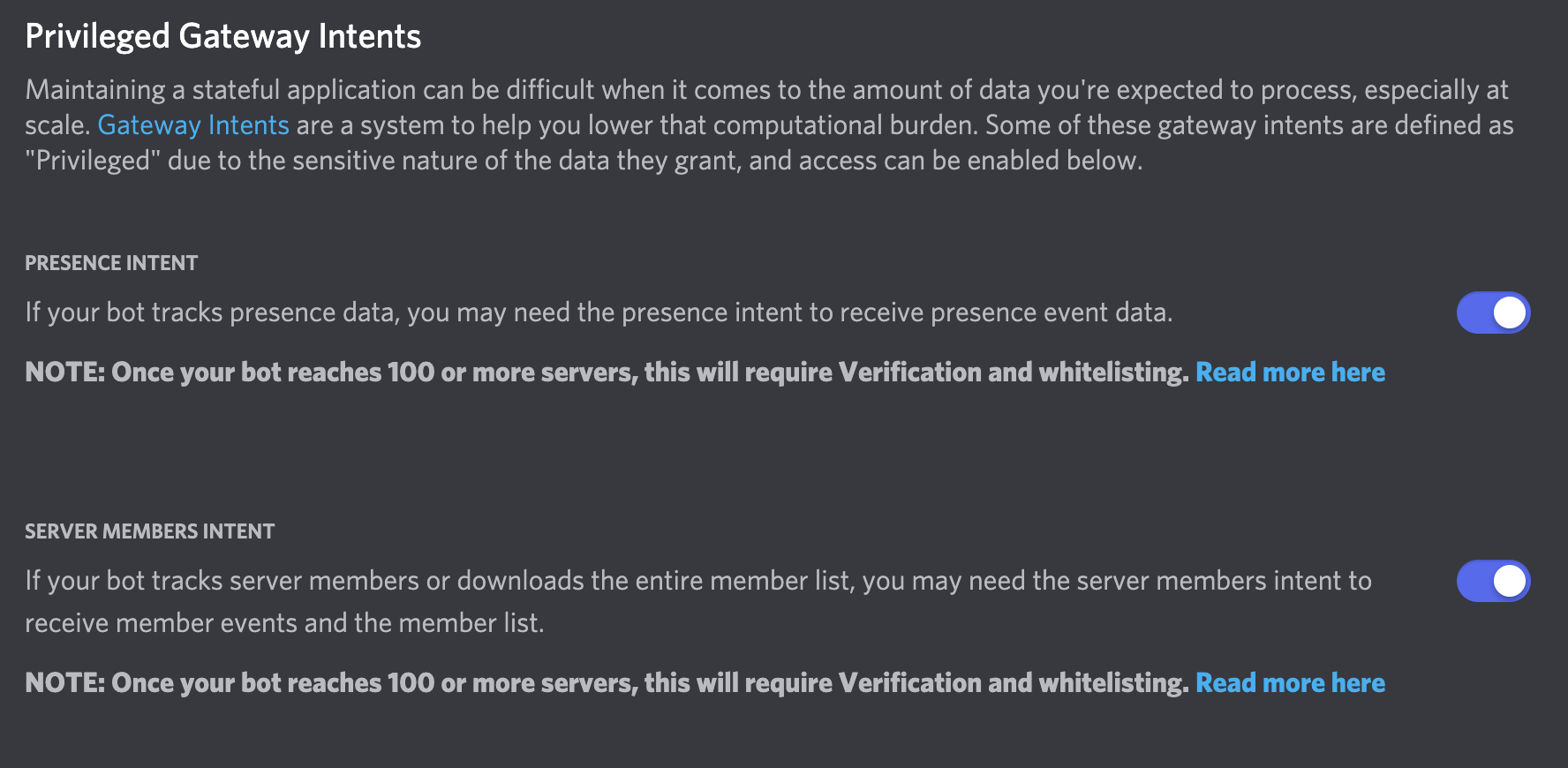
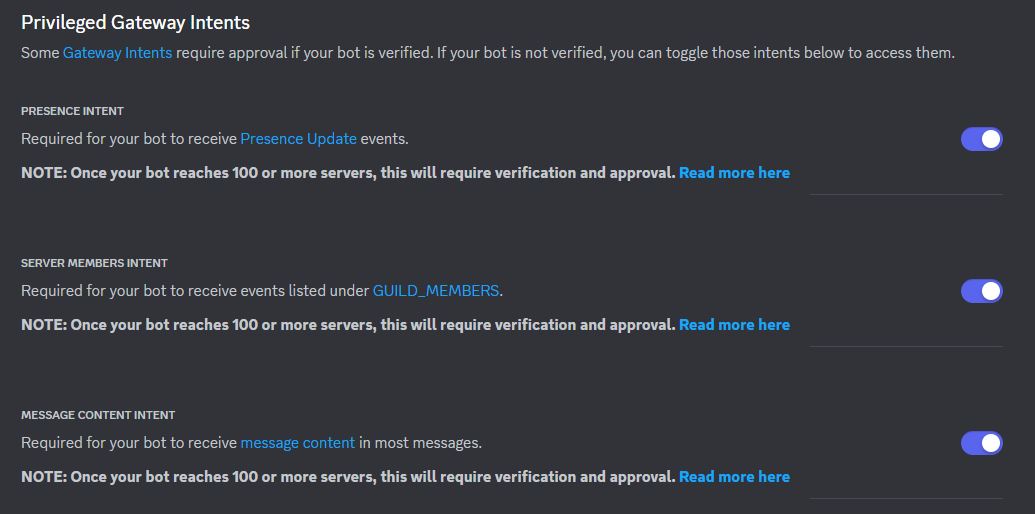
- Privileged Gateway Intents — enable the following:
- Server Members Intent — required for role checking and user management
- Message Content Intent — required for reading commands
Warning
The bot will not function correctly without these intents enabled.
Step 4: Invite the Bot to Your Server
- Go to the OAuth2 section, then URL Generator
- Under Scopes, select:
botapplications.commands
- Under Bot Permissions, select:
- Send Messages
- Manage Messages
- Embed Links
- Attach Files
- Read Message History
- Use External Emojis
- Add Reactions
- Manage Roles (if using role subscriptions)
- Copy the generated URL and open it in your browser
- Select your server and authorize
Step 5: Get Your IDs
You'll need several Discord IDs for configuration. Enable Developer Mode in Discord:
Settings → Advanced → Developer Mode → Enable
Then right-click to copy IDs:
- Guild (Server) ID — right-click your server name → Copy Server ID
- Channel ID — right-click the registration channel → Copy Channel ID
- Your User ID — right-click your username → Copy User ID
- Role IDs — Server Settings → Roles → right-click a role → Copy Role ID
Step 6: Configure PoracleNG
Add the bot token and IDs to your config/config.toml:
[discord]
enabled = true
token = ["your-bot-token-here"]
guilds = ["your-guild-id"]
channels = ["registration-channel-id"]
admins = ["your-user-id"]
For more Discord configuration options, see Discord Configuration.
Multiple Bots
PoracleNG supports multiple Discord bot tokens for sending messages. The first token is used as the command controller; additional tokens are workers for sending alerts:
Each worker bot must also be invited to your server with the same permissions.